Making Lifecycle Workflows State-Aware with State Groups

Lifecycle Workflows in Microsoft Entra ID Governance are powerful—but they are also fundamentally trigger-driven.
Workflows are typically initiated by:
- Attribute changes
- Dates relative to employeeStartDate and employeeLeaveDateTime
- Changes in group membership
This works well for simple automation.
But as soon as you try to model a real identity lifecycle, things become harder.
You quickly run into questions like:
- "What state is this user currently in?"
- "Should this workflow still run if the user has already progressed?"
- "How do we handle exceptions like suspension or cancelled hires?"
Lifecycle Workflows don’t answer those questions out of the box.
That’s where state groups come in.
The goal is simple: make Lifecycle Workflows aware of where a user is in their lifeycle.
Introducing state awareness
State groups are not a built-in feature in Entra ID Governance.
They are a pattern—a way of modeling lifecycle state explicitly using group membership.
Instead of relying only on attributes or dates, we represent:
"Where is this user in their lifecycle?"
…by placing them in a state group.
This makes it possible to:
- Control lifecycle progression
- Handle exceptions cleanly
- Avoid unintended automation
- Ensure actions only happen at the right time
Why state groups alone are not enough
At this point, it’s tempting to think:
"Great — I’ll just use groups for everything."
But Lifecycle Workflows have two important limitations:
- Workflows triggered by attribute change or dates cannot be scoped to groups
- Workflows cannot modify Administrative Unit membership
This creates a gap:
- Groups can represent state
- But workflows cannot reliably use those groups as scope
So we need one more layer.
Combining state groups and Administrative Units
The solution is to combine two concepts:
| Component | Purpose |
|---|---|
| State groups | Represent lifecycle state |
| Administrative Units (AUs) | Provide workflow scoping |
Administrative Units act as a dynamic projection of state groups, allowing workflows to operate based on lifecycle state—even when triggered by attributes or dates.
Define the lifecycle entry point
Start by defining which users are part of your lifecycle process.
Create a dynamic group:
Example:
DG-LCW-StateUsers
Example rule:
user.employeeId -ne null
This group represents all identities that should enter your lifecycle model.
Define the lifecycle state groups
Next, define security groups for each lifecycle state.
For example:
LCW-PreStartLCW-OnboardingLCW-ActiveLCW-LeaverLCW-SuspendedLCW-CancelledHire
These groups represent where a user currently is in the lifecycle.
Core rule: Single state membership
A user must only be a member of one state group at any given time.
This is critical.
It allows the lifecycle to behave like a state machine, where:
- Each user always has exactly one state
- Transitions are controlled and predictable
Once lifecycle states are defined, users must be placed into their intial state.
This is done using a Lifecycle Workflow triggered by membership in the entry group.
Example:
Trigger:
- User becomes a member of
DG-LCW-StateUsers
Actions:
- Add user to
LCW-PreStart - (Optional) Perform initial setup actions
This workflow acts as the entry point into the state model, ensuring that all users begin in a controlled and known lifecycle state.
Unlike other workflows, this entry workflow does not require Administrative Unit scoping, as the trigger itself defines the target user.
No user should exist outside the lifecycle model once they are in scope.
Making state usable: Administrative Units
Now we connect state groups to Lifecycle Workflows.
Administrative Units for state scoping
Create one Administrative Unit per state:
AU-PreStartAU-OnboardingAU-ActiveAU-LeaverAU-SuspendedAU-CancelledHire
Each AU uses a dynamic membership rule:
user.memberof -any (group.objectId -in ['<StateGroupObjectId>'])
This ensures:
LCW-PreStart → AU-PreStart LCW-Active → AU-Active
The AU always reflects the user’s lifecycle state.
👉 This is what allows workflows to be scoped correctly.
Administrative Unit for state group management
There is one important piece.
Create a separate Administrative Unit.
Example:
AU-StateGroups
This AU contains:
- All lifecycle state groups
Its purpose is different:
- It is not used to target users
- It allows workflows to modify group membership when AU scoping is used
👉 This is required because Lifecycle Workflows can only modify objects within their scope.
State transitions
Each allowed lifecycle transition should be implemented as a separate workflow.
Example:
PreStart → Onboarding
Workflow scope:
- AU-PreStart (target users)
- AU-StateGroups (allowed modifications)
Actions:
- Add user to
LCW-Onboarding - Remove user from all other state groups
Why remove from all state groups?
To enforce the core rule:
A user must only be in one state group
Removing from all groups ensures consistency—even if something unexpected happens.
Modeling real-world lifecycle scenarios
A simple lifecycle might look like:
PreStart → Onboarding → Active → Leaver
But real environments are rarely that simple.
Cancelled hire
PreStart → CancelledHire
Suspension
Active → Suspended → Active
Late hire
PreStart → Active
By explicitly modeling states, these scenarios become managable instead of fragile.
An example of how a designed state flow can look like:
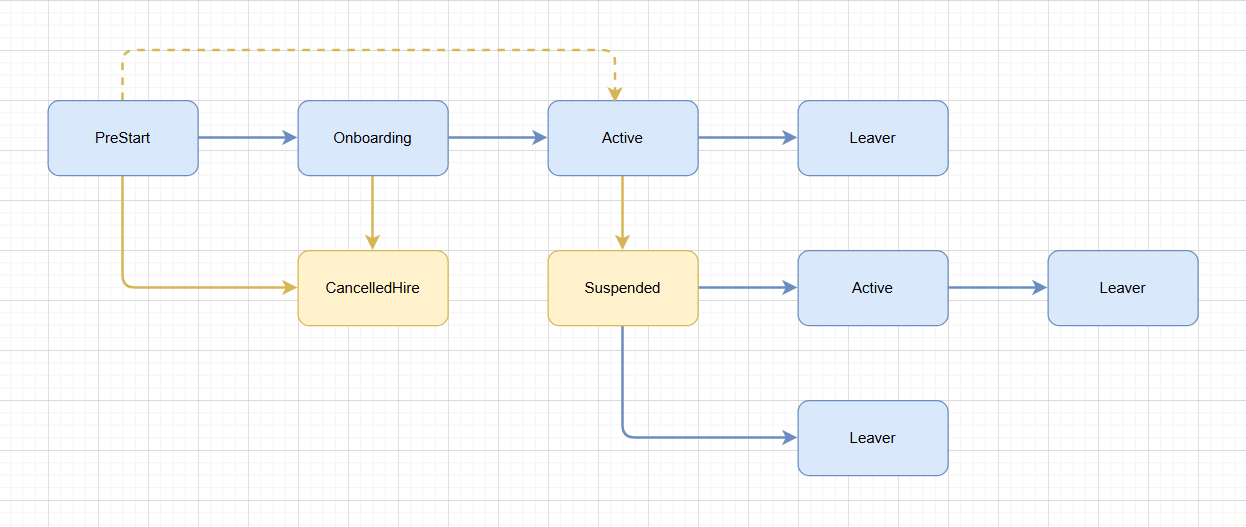
Blue boxes represent the normal lifecycle, yellow are the pre-defined exceptions.
Operational workflows
Not all workflows should move users between states.
Separate your logic into two types:
State transition workflows
- Move users between states
- Define lifecycle progression
Operational workflows
- Assign licenses
- Grant or remove access
- Send notifications
- Disable accounts
These are scoped to the relevant Administrative Unit:
*"Do this action for all users in this state"
Why this approach works
Lifecycle Workflows are powerful—but not inherently lifecycle-aware.
By introducing:
- State groups
- Administrative Unit scoping
- Controlled transitions
...you transform them into something much closer to a true lifecycle engine.
If Lifecycle Workflows are the engine, state groups are what gives it direction.
Comments
Leave a Comment
Reply to Comment
No comments yet. Be the first to share your thoughts!